

Notes
Notes in Gologin allow you to store additional information directly within each browser profile. This is useful for keeping track of account details, reminders, or any context related to a specific profile. To add a note to the profile, simply click on the notes of the profile and start typing.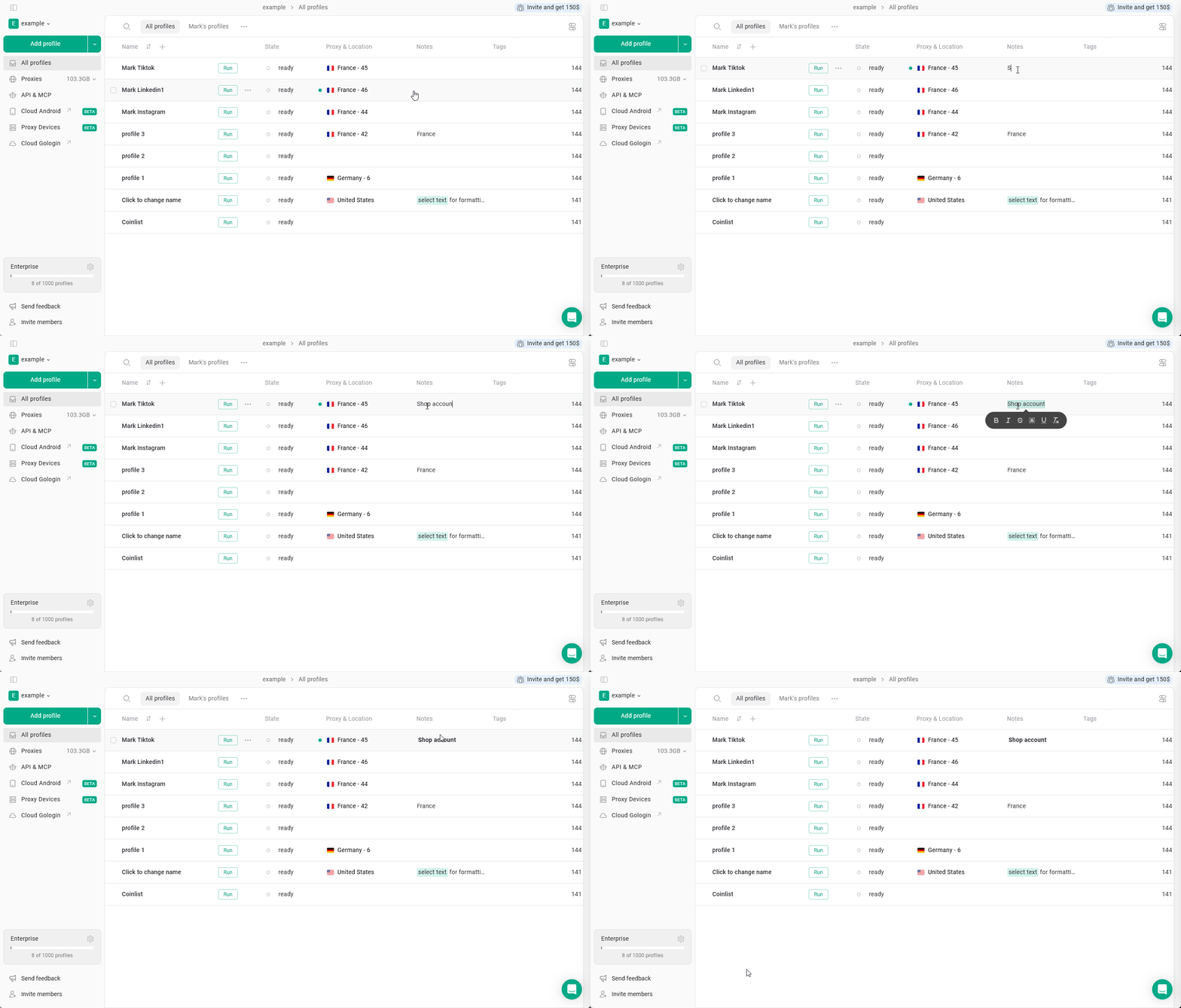
Select the text and apply it!
Tags and Status
Tags allow you to label profiles with keywords to help categorize and filter them by account type, platform or project, while Status displays the workflow state.These fields are hidden by default. Visit this page to learn how to enable them in the settings.
Create or add
To create a new tag or status, click on the respective field in the profile and start typing. You can also choose a color while creating or editing it. You can assign existing tags to a profile by selecting them from the list.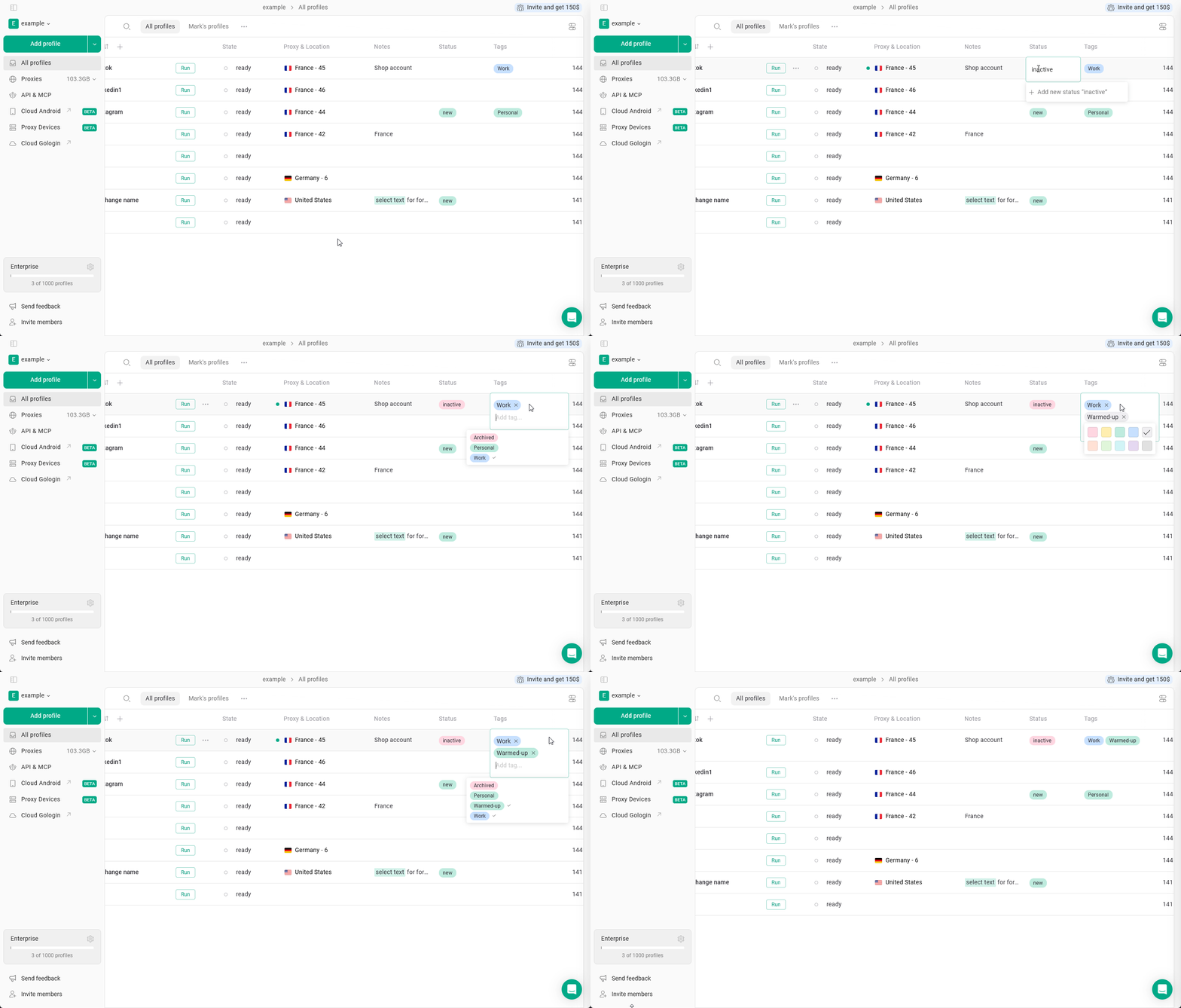
Filter by
You can filter profiles by status or tags. To do this, click on the corresponding field and select the tag or status you want to filter by. To clear the filter, click the arrow next to the field category.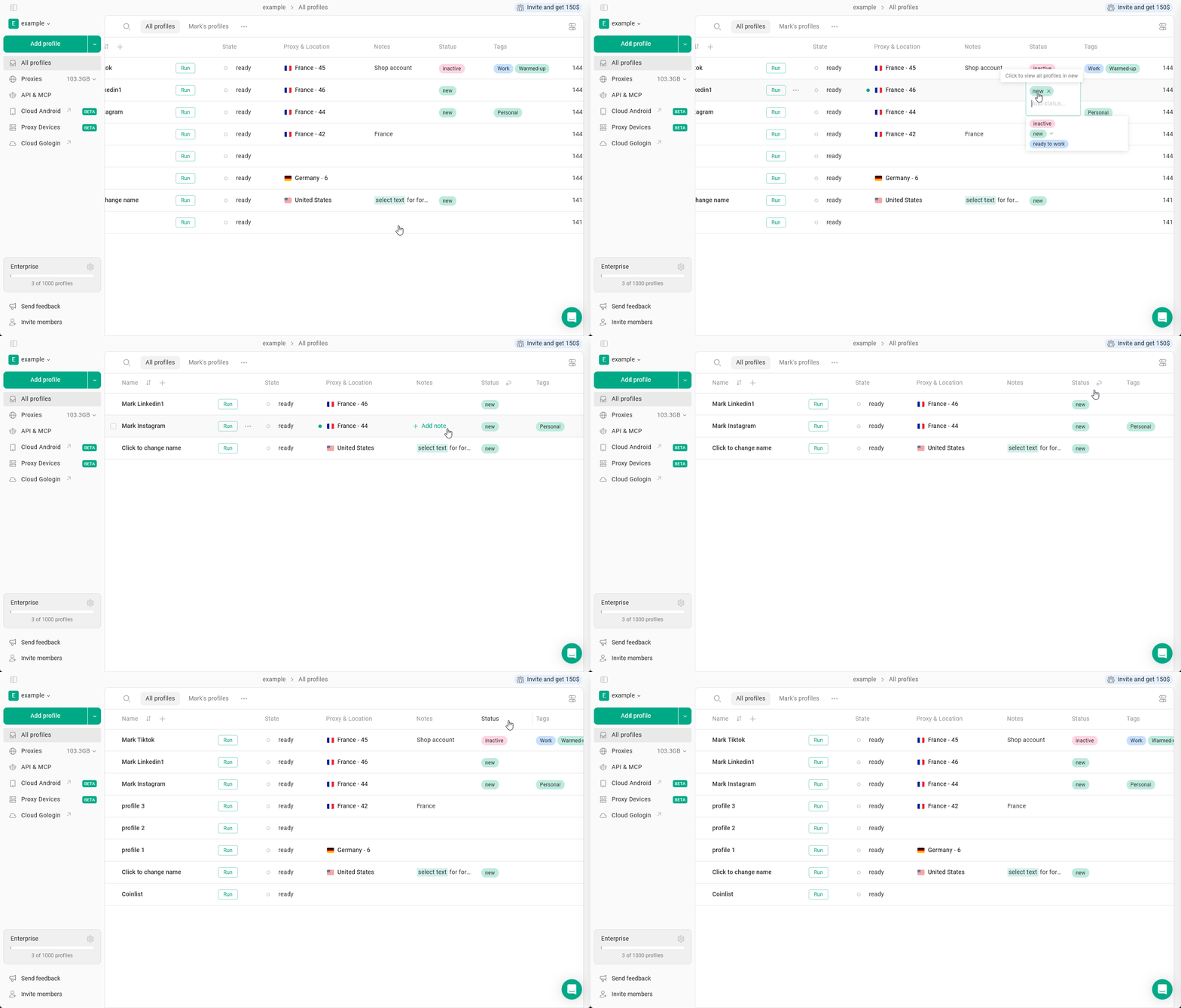
Modify tags and status
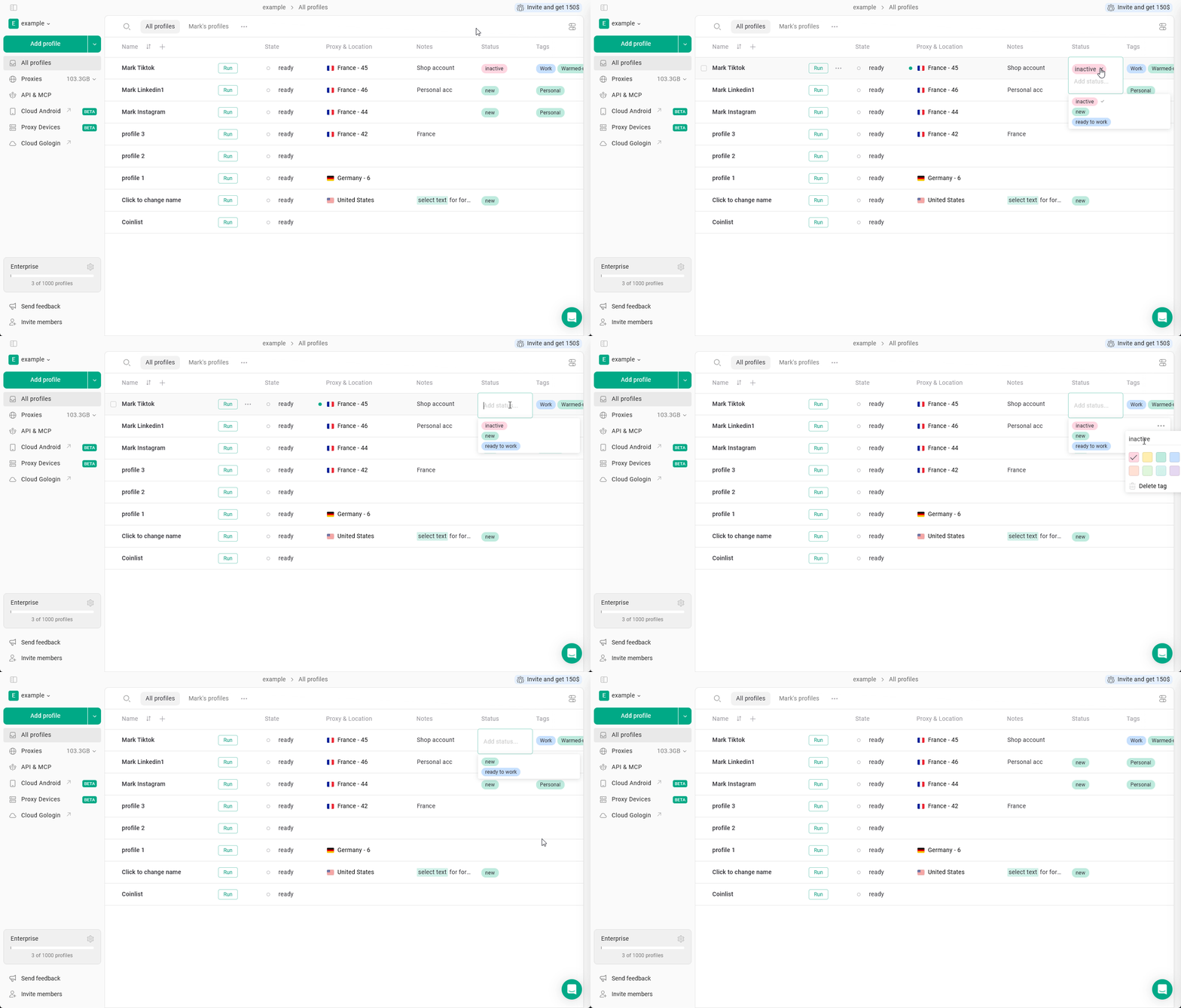
- To remove a tag or status from a profile:
Click the field → click X next to the item - To delete a tag or status entirely:
Click the field → click the three dots next to the item in the list → Delete
Teamwork
These fields behave differently when working with shared profiles, folders, and workspaces.- Notes are fully synced. Any changes made to notes will be visible to all team members.
- Tags and Status are user-specific. When you share a profile, recipients will not see your tags or status and can assign their own based on their workflow.
Team members need “can edit” access to change profile notes, status, and tags